
A Thursday in April, 6.52pm, on the stairs at Hackney Central. My Pixel 6 Pro slipped out of my hand while I was fishing for my Oyster card — three steps, a dull clack, a black screen. Not a scratch on the glass. Just black. The next morning, the man at the repair shop on Mare Street opened it up, sighed and gave me his verdict in three words: "Motherboard. It's gone." Then the question nobody wants to hear: "Did you have a backup?"
I had one. Or so I thought. Google Photos had backed up everything since I'd had that phone (the one I got for £380 three months after the Pixel 7 launch) — right up until my free 15GB filled up, sometime in November. From then on, the app said "Backup paused". There had been notifications. Emails too. I swiped them away with my thumb — the way you swipe away an ad for a meditation app. The result: five months gone. 1,146 photos and 38 videos, including the before-and-after of my living room painted sage green, thirty seconds of my dad discovering the selfie camera (he holds the phone like a cheese board) and forty-odd portraits of my cat asleep in a cardboard box. Nothing vital. All of it irreplaceable.
And Google saw it coming. In November 2020, Google's announcement ending free unlimited photo storage noted that "more than 4 trillion photos are stored in Google Photos, and every week 28 billion new photos and videos are uploaded". The same post predicted that "over 80 percent of you should still be able to store roughly three more years worth of memories with your free 15 GB of storage". Do the maths from June 2021. We're there.
Backing up your phone photos comes down to one rule and four methods — the cloud, a computer, an external hard drive and a NAS. None of them is enough on its own. Here's what each one costs, what it really protects you from, and how to switch it on for iPhone and Android — the routine I should have had before the stairs at Hackney Central.
The 3-2-1 rule: how many copies of your photos you really need
Three copies, two kinds of storage, one kept somewhere else — that's the 3-2-1 rule. The idea matches the way the National Cyber Security Centre's guide to backing up your data defines a backup: "a copy of your important data that's stored in a separate safe location". And its advice on what to back up is refreshingly simple: "As a rule of thumb, you should back up anything that you value."
Applied to your phone, the 3-2-1 rule looks like this:
- Copy 1: your phone. The original — and the most exposed. It gets dropped, nicked, soaked, or simply dies (mine chose a staircase).
- Copy 2: the cloud. Automatic, away from home, reachable anywhere. It covers you against a lost, stolen or broken phone.
- Copy 3: something physical. Your computer, an external hard drive or a NAS — a copy you control, with no subscription attached.
The "1" deserves a moment. A burglary or a burst pipe takes the phone AND the drive sitting next to it. The cloud solves the location problem. So does a drive kept at your parents' — or in a drawer at work.
Why three, not two? Because a backup can stop without a sound (mine managed five months of silence). Because an online account can be hacked, locked or closed. And because a mistaken deletion spreads to every synced device. Two copies is a belt. Three is belt and braces — and for photos you'll never be able to retake, I'll have both.
Cloud, computer, hard drive, NAS: comparing cost and capacity
The cloud is paid monthly; hardware is paid once — that's the whole difference between the four backup methods. The rest fits in this table, with the prices Apple lists for the UK, Google One's UK plans and hardware prices from Argos and Box.co.uk.
| Method | Cost | Capacity | Automatic? | Protects you from… |
|---|---|---|---|---|
| iCloud (iCloud Photos) | 5GB free, then £0.99 a month (50GB), £2.99 (200GB), £8.99 (2TB) | Up to 12TB (£54.99 a month) | Yes | A lost, stolen or broken phone, plus a burglary or flood at home |
| Google Photos (Google One) | 15GB free, shared with Gmail and Drive, then £1.59 a month (100GB), £2.49 (200GB), £7.99 (2TB) | 2TB on the largest of these plans | Yes | A lost, stolen or broken phone, plus a burglary or flood at home |
| Computer | Nothing extra if you already own one | Whatever is free on its drive | No | A lost, stolen or broken phone, plus a closed account |
| External hard drive | £65.99, paid once (2TB WD Elements Portable at Argos, December 2024) | 2TB on that model | No | A lost, stolen or broken phone, plus hacking and cascading deletions, as long as it stays unplugged |
| NAS | £174.99 for the enclosure alone (two-bay Synology DS223j at Box.co.uk, April 2025), drives extra | Whatever drives you fit in its two bays | Yes, via the maker's app | A lost, stolen or broken phone, plus the end of a subscription |
Over a year, the cloud stings more than it looks. According to Apple's iCloud+ plans and pricing for the UK, 200GB comes to £35.88 a year and 2TB to £107.88 (£8.99 × 12). On the Google side, MoneySavingExpert's guide to free online storage lists Google One at £1.59 a month for 100GB, £2.49 for 200GB and £7.99 for 2TB — so 100GB comes to £19.08 a year, or £15.99 if you pay annually. The sums are modest. The catch is that the subscription runs for as long as your photos stay online, and it grows with your library.
The external hard drive does the opposite maths: you pay once, and that's it. My habit: put the price of a 2TB drive next to the £107.88 a year of a 2TB iCloud plan. Argos had the 2TB WD Elements Portable at £65.99 in December 2024 — just over seven months of that plan. Except the drive backs up nothing on its own — which is where the cloud wins back the lead. A NAS does back up on its own, but asks for more upfront: Box.co.uk was selling Synology's two-bay DS223j at £174.99 in April 2025 for the enclosure alone, drives extra.
My take, no hedging: for most of us, the right combination is a cloud (for the automatic, "away from home" copy) plus an external drive (for the unplugged copy). A computer will do at a pinch. A NAS — that's for households with a lot of photos, several phones and a taste for tinkering.
Method 1: the cloud (iCloud or Google Photos), automatic but paid
The cloud is the only method that backs up your photos without you thinking about it. Switch it on, forget it, and every photo heads to Apple's or Google's servers as soon as your phone has a connection. It's the "somewhere else" copy of the 3-2-1 rule — the one that survives a staircase.
iCloud or Google Photos? On an iPhone, iCloud Photos is built into the system — the shortest route. On Android, Google Photos usually comes pre-installed. Worth knowing: Google Photos also has an iPhone app — handy if your partner is in the other camp.
What the cloud does well: protect you from loss, theft and breakage. What it does badly: it costs every month, it hangs on one account (and its password), and it syncs your mistakes too. Then there's the small print — free space fills up fast. At Google, the 15GB is shared between Google Photos, Gmail and Google Drive. So my 2016 email attachments were taking up the room meant for my 2025 photos (yes, bank statements in PDF versus portraits of a cat).
Another Google subtlety: upload quality. Google Photos' help page on backup quality sets out two options. "Original quality" keeps the resolution you shot in. "Storage saver" compresses photos above 16 MP and brings videos above 1080p down to 1080p. For memories you look at on a screen, Storage saver is plenty (my view, not Google's). For a photo you might print large — keep the original.
One detail matters if you've used Google Photos for years: anything backed up in "high quality" — now called Storage saver — before 1 June 2021 doesn't count towards your storage, the same page says. Since then, everything you upload counts towards your 15GB.
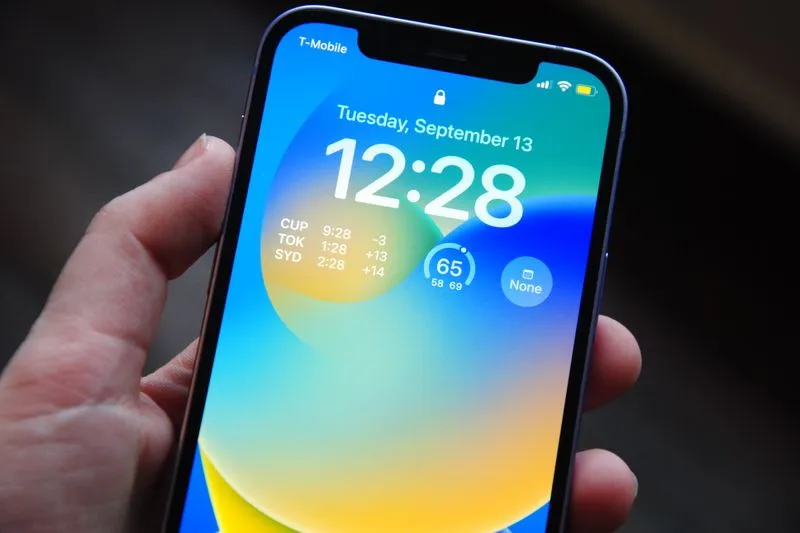
iPhone tutorial: turning on iCloud Photos step by step
Turning on iCloud Photos takes two minutes; the first upload can take a whole night if your library is big. Here's the order I'd follow.
- Check your space. Open Settings, tap your name, then iCloud. The bar at the top shows what's eating your 5GB of free storage — photos, iPhone backup, messages.
- Pick a plan if you need one. A real photo library won't fit in 5GB. iCloud+ runs from £0.99 a month (50GB) to £54.99 (12TB), with 2TB at £8.99, and you can upgrade from the same menu.
- Turn on syncing. In Settings, tap your name, then iCloud, then Photos, and switch on syncing for your library.
- Choose between Optimise Storage and originals. With Optimise Storage, the iPhone keeps space-saving versions and leaves the high-resolution originals in iCloud. With originals, everything stays at full resolution on the phone — if you have the room.
- Let the phone get on with it. Plug it in, on Wi-Fi, for the first night. Apple notes that, depending on your internet speed, the time it takes can vary.
- Check. On a computer, sign in to iCloud.com and open Photos. If your latest shots are there, the backup is working.
Now read what Apple's support page on iCloud Photos says, carefully — one line sums it all up. Photos in iCloud Photos are "not duplicated in your iCloud backup", and Apple tells you to "keep backup copies of your library". Read it again. Apple itself is asking you for a second copy.
Optimise Storage has a downside nobody mentions when you tick the box: your full-resolution photos now exist in one place only — iCloud. Stop paying, get locked out, delete something by mistake? The original has no twin. That's precisely why copy number three exists.
Android tutorial: backing up your photos with Google Photos
On Android, photo backup runs through the Google Photos app, and it takes under a minute to switch on. These steps follow Google Photos' help page on backing up photos and videos.
- Open Google Photos and sign in to your Google Account — the right one, because you can back up to only one Google Account at a time.
- Tap your profile picture (or initial), top right.
- Go to Google Photos settings, then Backup.
- Turn on Backup.
- Choose the quality — Original quality or Storage saver.
- Decide about mobile data. It's optional: without Wi-Fi, it starts the backup on your mobile allowance. On a small data plan, leave it off.
- Check the status. The same screen shows "Backup complete" or "Backup paused". If it's the second, tap the status to find out why.
The help page also flags two conditions. Your Google Account storage is shared across Google Photos, Google Drive and Gmail — if it's full, you either buy more or clear some out. And backup needs a good internet connection. If your phone is a Samsung, its own Gallery app may offer syncing too; pick one service as your reference, and check that one every month.

Method 2: copying your photos to a computer (Mac or PC)
A computer is the free backup you already own — as long as you remember it, because nothing happens there by itself. You need a cable, ten minutes and a bit of method.
iPhone to Mac. Plug in the iPhone and open the Photos app. If the iPhone asks whether to Trust This Computer, tap Trust. Choose an album, then click Import All New Photos. Wait until it's finished before you unplug.
iPhone to Windows PC. Install the Apple Devices app from the Microsoft Store, plug in the iPhone, unlock it and tap Trust; the import itself happens in Microsoft's Photos app. The catch, spelled out in Apple's guide to transferring photos to a Mac or PC: if iCloud Photos is on, you must first download the original, full-resolution versions to your iPhone — otherwise the PC gets the lighter copies.
Android to PC. Unlock the phone and plug it in. Tap the "Charging this device via USB" notification, then under "Use USB for", select File transfer. A window opens on the computer: drag your photos (usually in the DCIM folder) into a folder on the PC. If nothing happens, swap the cable — Google's Android help page on transferring files puts it bluntly: "Not all USB cables can transfer files."
Android to Mac. The easiest route is the browser: open photos.google.com, select your photos, download them. For a whole library, Google Takeout exports everything at once, in archives.
File everything by year, then by month — a "2025" folder, and inside it "2025-04 April". The computer has one weak spot: it stays at home, or travels in the same bag as your phone. A theft or a burglary then takes both copies in one go. The computer is where photos wait before they go to the drive.
Method 3: the external hard drive, the copy you unplug
An external hard drive is the easiest copy to keep out of a hacker's reach — on one condition: you unplug it. The NCSC is clear: "When the removable media isn't in use, it's important that you disconnect it." The reason is ransomware (malware that locks your files and demands payment). It can spread to a connected drive automatically, leaving you with no clean backup to recover from. Unplugged and in a drawer, the drive is safe from anything that happens online.
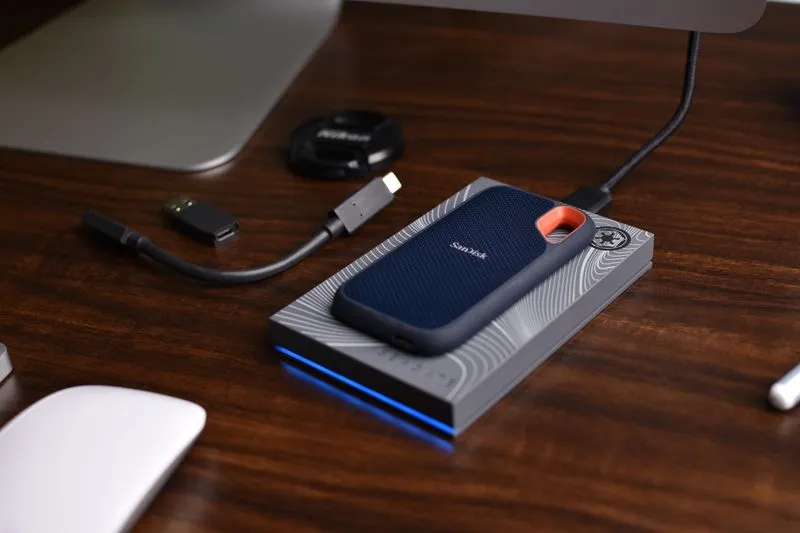
Classic hard drive or SSD? A spinning hard drive gives you more space for the same budget. An external SSD is faster, smaller and — with no moving parts — less bothered by knocks. For a copy that comes out once a month, a classic drive does the job nicely. On capacity, go for at least double your current library: you won't see it shrink.
The method, in four moves:
- Copy the photos from your phone to your computer, by cable.
- Plug in the drive and copy the month's folder — same structure, by year and month.
- Open a few photos straight from the drive to check they display.
- Eject the drive properly, unplug it, put it away from the computer.
Step 3 matters: a backup you've never opened is a backup you know nothing about. The NCSC also suggests setting a calendar reminder to back up to removable media at regular intervals — which is exactly the trick that keeps my routine going.
Then there's location. If your drive sits in the desk drawer right under your phone, one burst pipe takes everything. Mine lives at my parents' — I pick it up whenever I visit, copy the latest months, and it goes back in its drawer. That ticks the "1" of the 3-2-1 rule. And it's one more reason to go and see them.
Method 4: a NAS, your own private cloud at home
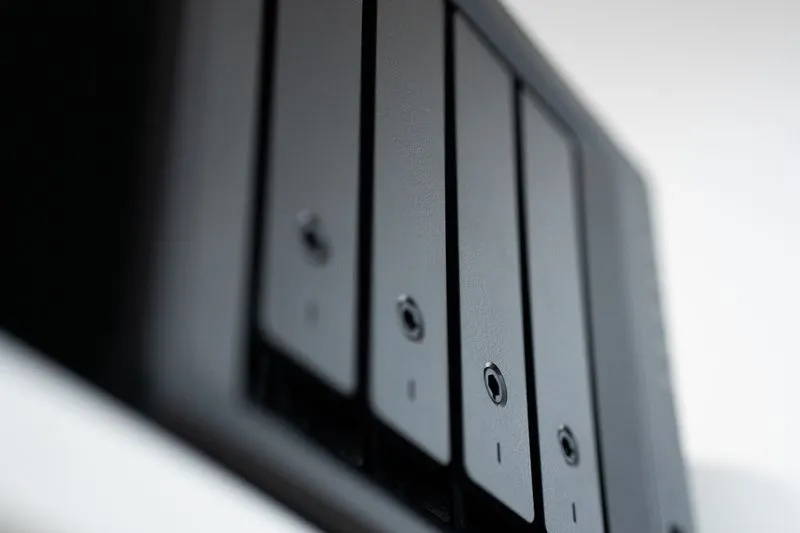
A NAS (network attached storage) is a small box connected to your broadband router, holding one or more hard drives. It works like your own cloud — your photos travel automatically from phone to box, at home, with no monthly fee.
Take Synology, a NAS maker, as an example. Its Synology Photos app backs up your phone's photos in the background once automatic backups are switched on. And the product page is clear about price: "Synology Photos is completely free and doesn’t offer any paid “premium” tiers." There's one condition: it only works with one of the brand's NAS boxes. So the whole cost is upfront — the box, plus the drives.
A NAS has real strengths: capacity (whatever drives you put in), no subscription, and sharing across the household's phones. Against that, it costs a lot upfront and needs setting up. Above all, it lives… at home. On its own, a NAS doesn't honour the "1" of the 3-2-1 rule — a fire or a burglary takes it along with everything else. Pair it with a copy somewhere else — a drive left with someone you trust, or a cloud.
Syncing is not backing up: the traps that lose you photos
Syncing means keeping the same content everywhere; backing up means keeping an independent copy. iCloud Photos and Google Photos sync. And that difference matters enormously the day you delete something by mistake.
Trap 1: deletions spread. Apple explains that when you delete photos and videos on one device, they're deleted everywhere you use iCloud Photos. You can recover them from Recently Deleted for 30 days — after that, they're gone for good. On Google Photos, deleting an item also removes it from the phones and tablets where backup is on, and from your albums and shared albums. It stays in the bin for 60 days if it was backed up (30 days if it wasn't, on Android 11 and up).
Trap 2: full storage. My story. The backup simply pauses, with a quiet "Backup paused" in the app. The notifications come, you swipe them away, and the weeks pile up on a single device. The only cure: check the backup status on a fixed date.
Trap 3: the locked account. Your online library is only as safe as your password. The NCSC advises protecting cloud accounts with a strong password and 2-Step Verification (a code sent to a second device). Also write down, somewhere other than your phone, how to recover your account if you lose the device that receives the codes — otherwise 2SV turns against you the day the phone dies.
Trap 4: the backup nobody tested. You think everything's copied. Have you checked? Open iCloud.com or photos.google.com on a computer and look for a photo from last week. If it isn't there, you've just saved yourself five months (I lost mine).
Switching phone or cloud without losing anything
Changing phone is the best moment to lose photos — and the best moment to sort everything out. If you're still weighing up models, my guide to the best-value smartphones will help you choose. For your photos, three moves before you trade in, sell or recycle the old one:
- Check the backup has finished, on the phone AND from a computer.
- Make a copy on your computer or external drive, in case the transfer fails.
- Only then, reset the old phone — never before you've seen your photos arrive on the new one.
Leaving a cloud takes more organisation. To get your whole Google Photos library back, the tool is Google Takeout (takeout.google.com): you select Google Photos, choose the file type (.zip or .tgz) and the archive size, up to 50GB. Google warns the process could take from a few minutes to a few days, though most people get the link the same day. Download promptly: the archive expires in about 7 days, and each one can only be downloaded 5 times.
On the Apple side, the easiest route is a Mac. In the Photos app, under the iCloud tab in Settings, choose Download Originals to this Mac — you get your whole library at full resolution, ready to copy to an external drive.
My 15-minute monthly backup routine
Since the stairs at Hackney Central, I've followed a routine that takes a quarter of an hour a month. It needs no effort, so I stick to it.
- All the time: the cloud. I took the 100GB Google One plan (£1.59 a month) and cleared out my old emails. Google Photos backs up on its own, over Wi-Fi.
- First Sunday of the month: the backup status. I open Google Photos, check the backup is complete, then look for a recent photo on photos.google.com. Two minutes.
- Same Sunday: the copy to the laptop. Cable, "2025-04 April" folder, drag and drop. Ten minutes — tea included.
- Every visit to my parents': the external drive. I copy the latest months, open three photos at random, unplug it and leave it there.
The result: my photos exist on the phone, in the cloud, on the laptop and on an unplugged drive at my parents'. Four copies, three kinds of storage, one elsewhere. A bit more than the 3-2-1 rule — and exactly what I was missing three weeks ago.
Your turn. Tonight, open your photo app and check your backup status. If it says "paused", you know what to do before your next staircase.
Frequently asked questions
What's the difference between iCloud Backup and iCloud Photos?
iCloud Backup copies your iPhone's settings and data; iCloud Photos syncs your photo library across your devices. Apple says photos in iCloud Photos aren't duplicated in your iCloud backup, and advises keeping backup copies of your library. Both use the same iCloud storage.
Is Google Photos still free?
Yes, up to 15GB shared with Gmail and Google Drive. Since 1 June 2021, new photos count towards that space; anything backed up in "high quality" (now Storage saver) before that date doesn't. Beyond 15GB, you need a paid Google One plan.
Is a USB stick or an SD card enough to back up my photos?
As a stopgap, yes; as your only backup, no. The NCSC lists USB sticks and SD cards among removable media you can back up to, but a stick gets lost in no time. An external drive you check regularly, plus a cloud, is safer.
My phone won't turn on: are my photos lost?
Not necessarily. First, sign in to iCloud.com or photos.google.com from a computer: anything that was backed up is there. For the rest, only a repair shop can tell you whether the phone's storage can be recovered, with no guarantee. In my case, the answer was no.
Do I need to pay for iCloud if I have a Mac?
Not necessarily: the Photos app on a Mac imports your iPhone photos by cable, for free. But the Mac then becomes your second copy — in the same home as your phone. Without a cloud, add an external drive kept somewhere else.
How do I get back a photo I deleted by mistake?
On an iPhone, open the Recently Deleted album: photos stay there for 30 days before they're deleted permanently. On Google Photos, check the bin: a backed-up photo stays there for 60 days (30 days for one that wasn't backed up, on Android 11 and up). After that, only a copy somewhere else can save it.
Does the cloud protect my photos if I delete my account?
No. If the account goes, its photos go with it. Before closing a Google Account, export your library with Google Takeout; before leaving iCloud, download the originals to a Mac, then copy them to an external drive.
Sources
- National Cyber Security Centre — Backing up your data
- Apple — iCloud+ plans and pricing
- Apple — Set up and use iCloud Photos
- Apple — Transfer photos and videos from your iPhone or iPad to your Mac or PC
- Google Photos Help — Back up photos and videos
- Google Photos Help — Choose the backup quality of your photos and videos
- Google — Updating Google Photos' storage policy to build for the future (November 2020)
- Google Account Help — How to download your Google data
- Android Help — Transfer files between your computer and Android device
- Synology — Synology Photos
- MoneySavingExpert — Free online storage
- Argos — Western Digital Elements 2TB USB 3.0 Portable Hard Drive (archived 12 December 2024)
- Box.co.uk — Synology DS223j 2-Bay NAS Enclosure (archived 21 April 2025)
- Google Photos Help — Delete photos and videos (archived 28 March 2025)